Symptom-first troubleshooting
Verity Mod Not Working or Not Responding
Identify the last layer that works, then check only the next layer: game and loader, world content, interface, connection, model response, or speech.
Start with the last thing that works
“Not working” hides several different failures. A game that crashes before the title screen has a different problem from a companion that appears but never answers. Do not reinstall everything after every symptom. Find the last successful layer and test the next one.
Use this order:
- Minecraft launches with the intended edition and version.
- The mod or add-on is loaded and active.
- The world opens without content or script errors.
- Verity appears or the documented interaction becomes available.
- The dialogue interface accepts a text prompt.
- The cloud or local model returns a text response.
- Microphone, speech recognition, and voice output work.
Record the edition, game version, loader or add-on release, exact symptom, and time. That small baseline prevents Java and Bedrock instructions from being mixed in the same support request.
Java: Minecraft does not launch
If the Java game crashes before a world opens, Groq and Ollama are not the first concern. Verify that the launcher profile uses the exact Minecraft version and the matching loader. The current checked route is Forge 1.20.1. The NeoForge 1.21.1 branch is listed by the maintainer as deprecated and buggy.
Remove unrelated mods and start with only Verity plus the dependencies listed for that release. Launch the empty loader profile once if you have not already. Check for duplicate project files and dependencies built for a different Minecraft version or loader.
Read the earliest meaningful error in the latest log or crash report. The final exit code is often only a summary. Search the log locally for “missing,” “requires,” “failed,” and the name of the first mod mentioned near the exception. Before sharing any excerpt, remove credentials, usernames, local paths, server addresses, and personal information.
Java: the world opens but Verity is missing
Confirm that the loader’s mod list includes Verity JE and that you opened the same launcher instance where the file was installed. Create a new world with a minimal mod set. Follow the current maintainer instructions for introducing or interacting with Verity rather than assuming a recipe, spawn egg, or key from an older video.
If the clean world works, add other mods back in small groups. If it does not, compare the exact Verity release with the game version and loader. A Forge release in a NeoForge profile, or the reverse, should be treated as incompatible even when the filename looks plausible.
Java: Verity appears but does not answer
This is the boundary between the in-game entity and the AI provider. Pick one provider for the test.
For Groq, confirm that the credential is active, entered only in the current maintainer-defined configuration location, and allowed to reach the service over the network. Do not post the value. If it may have been exposed, revoke it and create a replacement before continuing.
For Ollama, confirm that the Ollama service is running, the requested model is installed, and the model name matches the Verity configuration exactly. Test Ollama outside Minecraft with its official command or interface. If Ollama cannot answer independently, changing the mod will not repair the local service.
Use a short text prompt. Watch for a provider error, timeout, model-not-found message, or rate/service limit. Avoid repeatedly sending prompts while a first local model is still loading.
Java: text works but voice does not
Separate the audio path into three tests: microphone access, speech-to-text, and text-to-speech. A successful text answer proves that the model response path works, but it says nothing about the microphone or speaker output.
Check the operating system’s microphone permission for the Java/Minecraft process, the selected input device, and the current key bind. Then test whether recognized text appears. Finally, test voice output. The project page notes that AI text can support multiple languages while speech-to-text and text-to-speech were tested in English. Use simple English during diagnosis even if you intend to chat in another language later.
Bedrock: Verity displays ...
The checked Verity BE troubleshooting notes associate three dots with a connection or backend problem. The add-on content loaded far enough to present a response state, so reinstalling the resource pack is not automatically the right first move.
Verify the exact Bedrock build, confirm both behavior and resource packs are Active, confirm Beta APIs and cheats, and repeat the current maintainer connection step once. Read the full response. Then test a new world with no other behavior packs. If multiple users report the same backend failure at the same time, monitor the maintainer page or support channel rather than repeatedly changing a working local install.
Bedrock: the dialogue box is missing
A missing interface points toward inactive behavior scripts, disabled experiments, or a game-build mismatch. Re-open the world settings and confirm Beta APIs remained enabled. Verify the behavior pack is under Active, not only My Packs. Use a fresh world created after all required settings were enabled.
Remove other behavior packs for the test. Bedrock updates can rename experiments or change creator API behavior; compare your current menu with the maintainer tutorial and project description. If your Bedrock build is newer than the listed release, the project may need an update.
Bedrock: Verity does not appear
Confirm both pack halves imported without a content error. Remove duplicate old revisions from the world and storage, restart Minecraft, and import the checked project release again. Follow the current project steps for spawning or activating Verity. Java key binds, recipes, and model-provider instructions do not apply.
If the entity appears in a clean world but not an existing world, compare active packs and experiments. Do not keep toggling settings in a valuable save; duplicate the world first.
“No purpose,” connection errors, and changed behavior
Capture the exact text, capitalization, and when it appears. A phrase shown as story content can look similar to a technical error, while a backend response can look like dialogue. The maintainer-linked “Error: No Purpose” video is included on this page as project context, but a video is not a substitute for the current changelog or support notice.
Check whether the issue reproduces after a restart in a clean world and whether it affects every prompt. If the behavior changes by time or backend availability, record the time and current version. Do not infer malware, account compromise, or intentional surveillance from horror-themed dialogue alone; technical claims require technical evidence.
The project is missing or looks taken down
Search by the checked identity: Verity JE is Project ID 1591438; Verity BE is Project ID 1574632. Inspect file history and maintainer notes. If you mean a different same-name upload, do not transfer rumors about that upload to these two projects.
Avoid backups offered through chat attachments, shared drives, and link shorteners. A person having an old copy does not establish provenance or safety. Community discussions can tell you that others are confused, but conflicting explanations are not a verified removal reason.
A useful support report
Include the edition, exact game version, loader and branch if Java, project release date, device/operating system, provider choice, last working layer, exact error text, clean-world result, and whether the issue began after an update. Exclude credentials, full home-directory paths, IP addresses, private server details, and account data.
That report gives a maintainer something reproducible. “It does not work” invites guesswork; “Bedrock 26.30, both packs active, Beta APIs and cheats enabled, connection step succeeds, then every prompt shows three dots in a new world” identifies the failing boundary.
Project gallery evidence
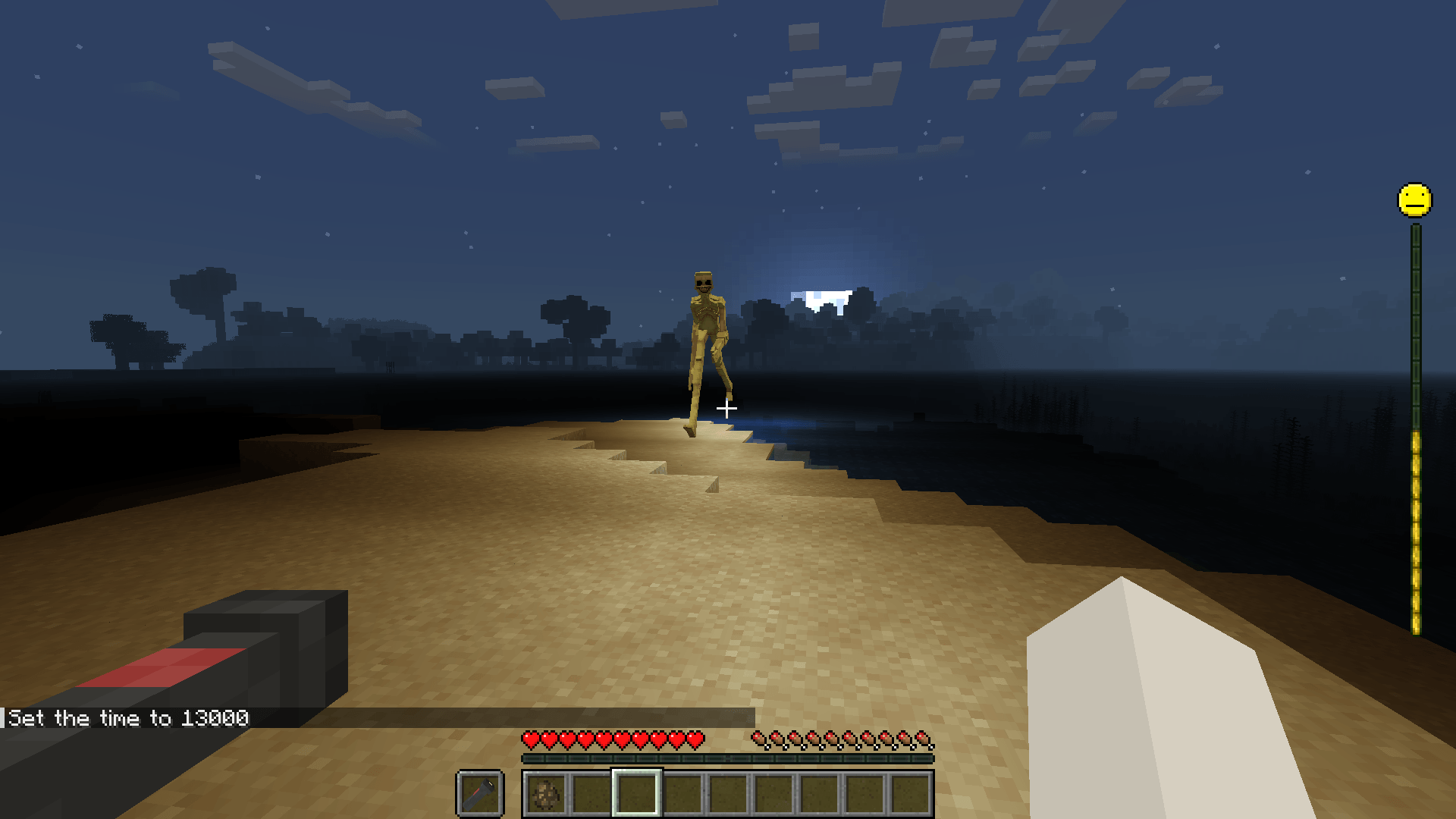
These images load from the public CurseForge project gallery. Copyright remains with the credited creators; each image links back to its source.
Watch the matching walkthrough
Video players load only after you press play. A normal YouTube link remains available beside every video.
Frequently asked questions
Why does Verity only display three dots?
For the checked Bedrock project, three dots point to a connection or backend issue. Verify the game build, active packs, Beta APIs, cheats, and the current maintainer connection step.
Why is Verity in the world but not speaking?
The entity layer can work while the AI, text-to-speech, microphone, or language setting fails. Test a short text prompt first, then separate response generation from audio output.
Why is there no dialogue box in Bedrock?
Check that the behavior pack is active, Beta APIs are enabled, the add-on matches the game build, and a fresh test world behaves the same way.
Why can I no longer find the project?
Search by maintainer and Project ID, inspect the Files and changelog areas, and do not recover a missing release from a mirror. A removal reason is unconfirmed unless the maintainer or platform states it.
Sources used on this page
Verity JE on CurseForge
Java identity, Project ID 1591438, Forge/NeoForge versions, AI options, files, gallery, and maintainer notices.
Checked
Verity BE on CurseForge
Bedrock identity, Project ID 1574632, current game builds, setup requirements, troubleshooting notes, and gallery.
Checked
Ollama documentation
Supported platforms, local model installation, service behavior, and model commands.
Checked